Transcribe Zoom meetings on your own computer, live or from the recording
Scribe transcribes a Zoom call on your own computer: record it from your side as it happens, or drag in a Zoom recording you already have, and get a labelled transcript with a summary either way. Nothing is uploaded to Zoom or to us. Recording live is free while Scribe is in beta; transcribing a file you already have is free.
Download Scribe Free plan for Windows and macOS. No card.
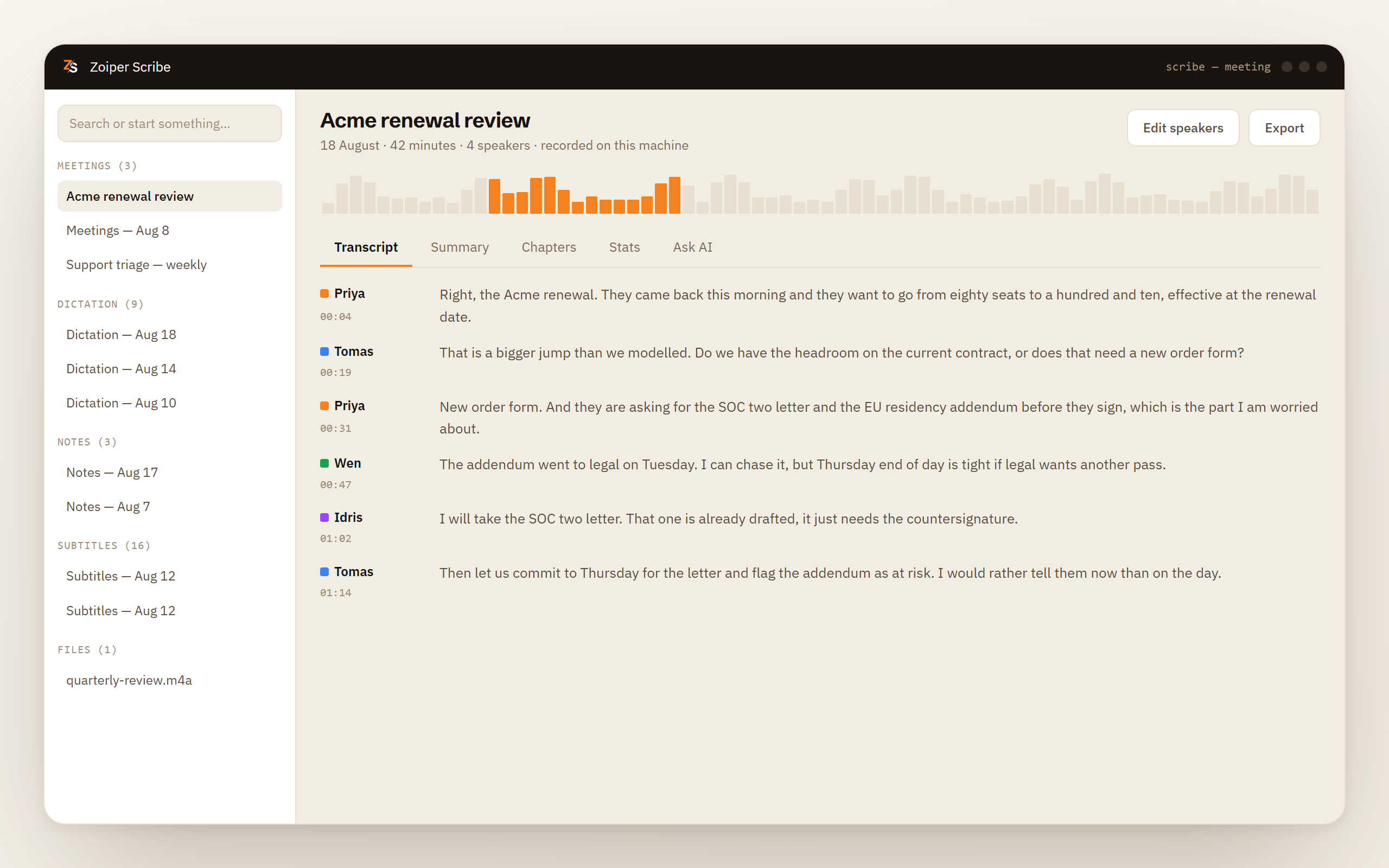
What Scribe does
Two routes in, one transcript out
Live capture from your side
Your microphone and the audio your computer is playing are recorded at the same time, as two streams. Nothing joins the call, so no extra guest turns up in the participant list.
The recording you already have
Drag in a Zoom recording and Scribe transcribes it like any other file. wav, mp3, m4a, flac, ogg, aac, mp4, mov, mkv and webm all go in directly, so there is no step where you extract the audio first.
Speaker labels for up to four voices
Voices are separated on your machine and labelled. Rename a label, add a role and a company, merge two that turned out to be one person, and see the talk-time split.
Summary, chapters and actions
After the recording you get a summary, chapters that break a long call into topics, and action items with the person who took them on. A local model writes them, or your own cloud key if you supply one.
How it works
The live path and the file path, step by step
Join the Zoom call the way you always do
Click the link, open the client, dial in. There is nothing to install inside Zoom, no marketplace app to approve and no calendar to connect.
Press record on your side
Or let Scribe start on its own when it notices that a call application has taken the microphone. That watching works on Windows and on macOS 14.2 or later.
Or skip both and drag in a file
If the call is over and you have the recording, that is the shorter route. The file is read from where it sits and never leaves the disk it is on.
The audio becomes a labelled transcript
Speech recognition and speaker separation run on your processor, on the live path and the file path alike. Neither one sends anything to Zoom, and neither one sends anything to us.
Read it, search it, export it
The transcript opens with timestamps beside the text and stays searchable in your local history. Exports are TXT, Markdown, SRT, WebVTT, CSV and JSON.
What Zoom already covers
Zoom already does some of this on its paid plans
Zoom writes meeting summaries with its own built-in AI, and as of September 2026 they come with the paid Zoom Workplace plans. Zoom also ships a real Linux desktop client.
So if you host your own calls on one of those plans, you are happy with Zoom's own tools, and the audio going to Zoom's cloud is not something you think about, use what is already in the client. You do not need us for that meeting.
Four things send people looking for the other approach.
The recording is not yours to start. Zoom's own recording and its meeting summary are the host's decision. A guest on Zoom Workplace Pro or higher can use Zoom's My Notes to transcribe for themselves, though the host can see it and switch it off. Beyond that, attend somebody else's call and you get whatever the host chooses to switch on and whatever they decide to share afterwards. Scribe records your own computer, so it behaves the same whether you called the meeting or were invited to it ten minutes ago.
You do not want the audio leaving the machine. Legal calls, medical calls, candidate interviews, a board conversation about an acquisition. Scribe runs the speech model on your own processor. Nothing is uploaded to Zoom, and nothing is uploaded to us either, because we run no transcription service to upload it to.
You already have the recording. A file on disk is the easy case. Drop it in and it is transcribed the same way a live call is, with the same labels and the same summary at the end.
Your week is not all Zoom. A Teams call on Monday, a Meet link on Wednesday, a softphone call on Friday. Scribe captures the sound your computer is playing, so all of them land in one history with one set of export formats.
The trade
Nothing to install in Zoom, and nothing Zoom knows
The only thing Scribe knows about your meeting is the sound it made. That is the whole design, and it cuts both ways.
In your favour: there is no Zoom app to install, no marketplace listing, no administrator to persuade and no OAuth screen granting anybody access to your calendar. Zoom, Teams, Google Meet, Webex, a browser tab, a recording you are playing back on your own speakers. Anything that makes sound on the machine can be captured, and Zoom never learns that we were there.
Against you: Scribe cannot read what Zoom knows. No participant list, so the voices start as Speaker 1 and Speaker 2 until you name them. No chat, no reactions, no registration details, no cloud recording to fetch later. If it was not audible on your computer, it is not in the transcript.
There is also no notification. Nothing joins the call, so the other side sees what it would have seen anyway, and Zoom sends no recording notice on our behalf. That is exactly why the obligation stays with you. Many jurisdictions require every party to a conversation to consent before it is recorded, and plenty of employers require it whatever the law says. Keeping the audio on your own machine does not change that. Say it out loud at the start of the call.
What to know before you rely on it
Recording a meeting is a Pro feature, free while Scribe is in beta, along with summaries, chapters and the panel where you ask questions about a recording. Transcribing a file you already have is free, and so are live subtitles.
- Capturing your computer's audio needs macOS 12.3 or later and Screen Recording permission. Windows uses loopback capture.
- Speaker labels cover up to four voices in a recording.
- No participant names and no chat, because Scribe only ever had the audio.
- Twelve languages run on device. Automatic punctuation and number formatting are not available in every language yet. More languages are coming.
- A Zoom recording you already have is read where it sits and left untouched.
Auto-start needs macOS 14.2, live labels want six cores, and what a live recording writes to disk
- Starting a recording by itself needs macOS 14.2 or later. Windows has no extra requirement.
- Live labels want at least six CPU cores, and below that Scribe applies them once you stop. The transcript itself does not wait.
- Live recordings are written as an Opus file next to the transcript, so a long call costs very little disk. Delete the audio once the transcript exists if you would rather not keep it.
- On Windows, a machine under 16 GB of memory or without a GPU gets a plain warning before speaker separation or a summary runs.
Download Scribe Transcribing a Zoom recording you already have is free. Live recording is free while Scribe is in beta.
Questions people ask
- Can I transcribe a Zoom meeting without recording it in Zoom?
- Yes. Scribe records your own computer's audio rather than asking Zoom for anything, so Zoom's recording stays off and no cloud recording is created. It does write an audio file on your disk, because that is what it transcribes, and you can delete it once the transcript exists.
- How do I transcribe a Zoom recording I already have?
- Drag the file onto the window. Both the audio-only and the video recording work, along with wav, mp3, flac, ogg, aac, mov, mkv and webm, and the video is handled directly so you do not have to extract the sound first. Transcribing files is on the free plan.
- Can I transcribe a Zoom meeting if I am not the host?
- Yes, and this is the main reason to record from your own side. Zoom's own recording and meeting summary are the host's to start. On Zoom Workplace Pro or higher, My Notes lets you transcribe for yourself as a guest, but the host can see it and switch it off. Otherwise you get what the host chooses to share. Scribe captures your own machine, so being a guest changes nothing about what you end up with.
- Does any of it go to Zoom's servers, or yours?
- Neither. The speech model, the speaker separation and the local summary model all run on your processor, and the recording, the transcript and the notes are files on your disk. The only exception is if you deliberately choose a cloud AI provider and supply your own key for the summary.
- Do I need AI for any of this?
- No. The transcript comes from a speech model, not a chat model, and you can stop at the transcript. Summaries, chapters and action items are a separate step you choose to run, and if you never run it nothing else happens to the recording.
Most products competing for this job capture your Zoom call and then send it somewhere to be turned into text. Several have removed the bot from the participant list; the upload is the part that did not change. Scribe captures the same way and does the work on the machine that captured it.