Transcribe Zoiper 5 call recordings on your own machine
Scribe detects Zoiper 5 on Windows and macOS and offers to set up the watcher in one click; from then on each recorded call becomes a transcript with speaker labels and a summary. One thing to check first: recording calls in Zoiper 5 requires Zoiper 5 Pro, and the watcher is a Pro feature, free while Scribe is in beta.
Download Scribe Free plan for Windows and macOS. No card.
What it does
Detected, wired up, then quiet
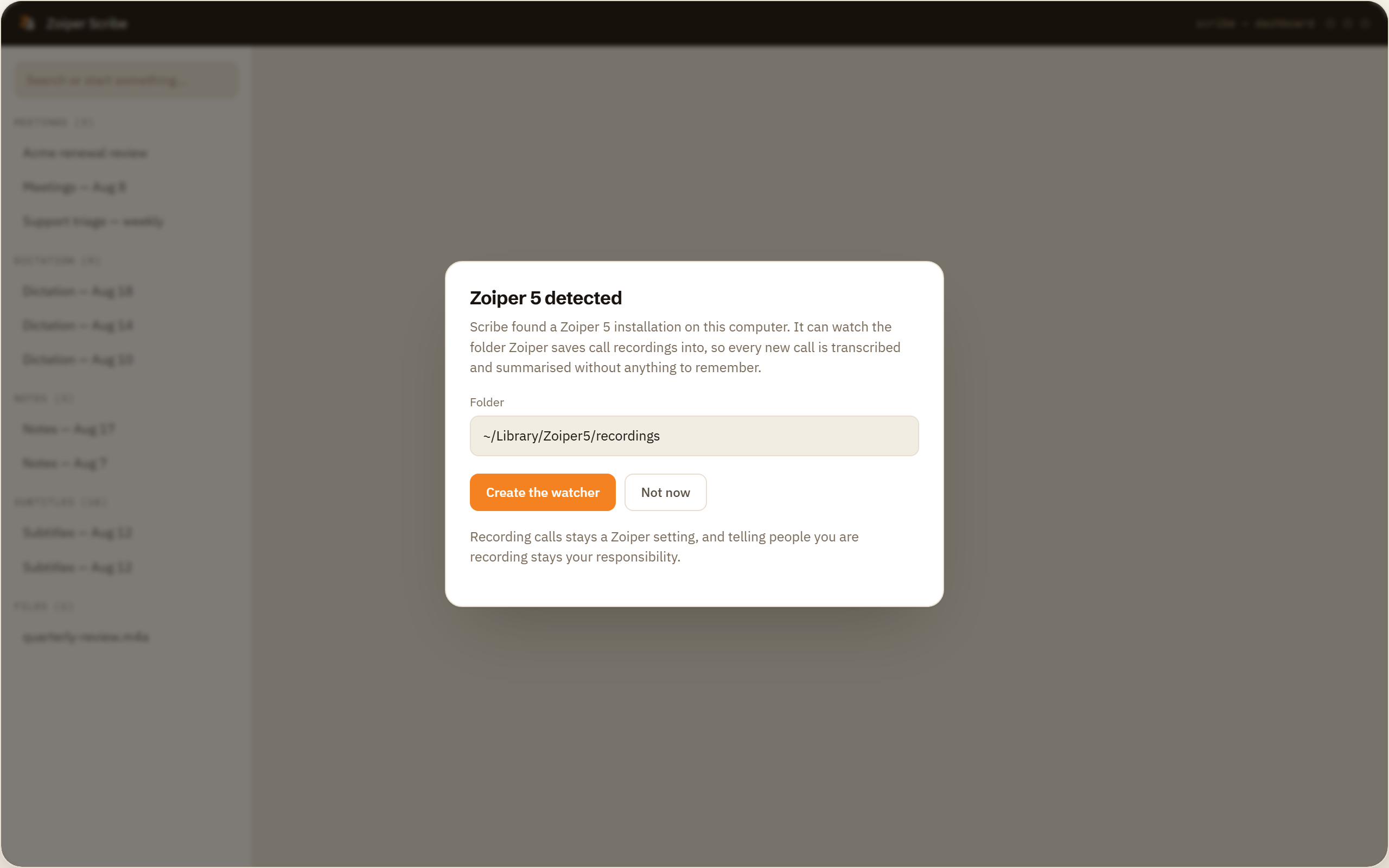
Zoiper 5 is found for you
On Windows and macOS, Scribe recognises a Zoiper 5 installation and offers to create the watcher on its recordings folder. One click and the wiring is done, with no paths to copy by hand.
New recordings pick themselves up
Every file that lands in the folder is transcribed and summarised without a button, a menu or a step anyone has to remember. The call ends, and a little later the transcript is there.
The two sides pulled apart
Speaker separation runs on your machine and handles up to four voices per recording, which is more than a two-party call needs. Rename each label once, add a role and a company, and the names stay attached.
Nothing is changed inside Zoiper
No plugin, no setting altered, no account connected and no update to your softphone. Scribe reads a folder, and Zoiper 5 carries on exactly as it did before.
How it works
Four steps, and three of them happen once
Turn on call recording in Zoiper 5
This needs Zoiper 5 Pro, a one-off purchase. Set the folder Zoiper writes recordings to, or note the one it already uses, because that path is the only thing Scribe needs.
Accept the offer Scribe makes
When Scribe finds Zoiper 5 it offers to create the watcher itself. Take the offer, or set the folder by hand if you keep recordings somewhere unusual, then choose the language of the calls.
Make calls the way you always do
Nothing about the call changes. Scribe is not on the line, not in the signalling path and not aware the call is happening until Zoiper has written the file out.
Read, search and export
Each finished call sits in your local history as a transcript with a summary. Search finds a call by what was said in it, and exports are TXT, Markdown, SRT, WebVTT, CSV and JSON.
Check this before anything else
Recording calls in Zoiper 5 requires Zoiper 5 Pro
Scribe transcribes recordings. It does not make them, and that difference is the thing most likely to waste your afternoon.
The recording is Zoiper's job, and in Zoiper 5 call recording is a Zoiper 5 Pro feature. Zoiper 5 Pro is a one-off purchase rather than a subscription, so it is not an ongoing cost, but it is a cost and it has to happen before any of this works.
If you install Scribe on free Zoiper 5, accept the offer to watch the recordings folder and then wait for transcripts, you will find no recordings in the folder and no error message, because nothing is wrong. There is nothing being written.
Two ways to be sure before you commit to anything. Make a test call in Zoiper 5 with recording switched on and look in the folder Zoiper writes to. Or drag one recording you already have into Scribe by hand, which is free and takes a minute, and see what the transcript looks like before you set anything up.
Two paths
Zoiper 5 already has an AI integration, and it is a good one
Zoiper 5 ships with a built-in integration with Banafo. Turn it on in Zoiper and your recordings go to your Banafo account, where the transcription and the AI work happen. Banafo comes from a sister company of Zoiper's, and it is built into the softphone rather than bolted on beside it.
These are two answers to two different situations. Pick by the situation you are in.
Banafo is the hosted path. It is already in Zoiper 5, it needs nothing else installed, and the work happens on a service rather than on your laptop. If you are happy with a hosted service, that is the fewest moving parts by some distance, and it does not care how old your computer is or how many cores it has. Turn it on and you are finished.
Scribe is the local path. It exists for the people and the organisations that cannot send the audio anywhere, or have decided not to. A clinic, a law firm, a works council, a contract negotiation, a machine that spends half its life on a network with no route out. For those, the requirement is not a preference, and the transcript has to be produced on the same machine the recording is already on.
There is a practical difference too. Scribe is one application covering dictation, meetings, live subtitles and files as well as calls, so the calls end up in the same searchable history as everything else. If calls are all you need and a hosted service suits you, the integration already in your softphone is the shorter road.
What it needs, and what it will not do
Watched folders and automatic call transcripts are part of Pro, free while Scribe is in beta and eight dollars a month afterwards. Transcribing a single recording you drag in yourself is free.
- Zoiper 5 Pro is required for call recording in Zoiper 5. It is a one-off purchase, and without it no recordings land in the folder.
- Zoiper 5 is detected automatically on Windows and macOS, and offers to create the watcher for you.
- Scribe does the transcript, not the recording. It has no SIP registration, no PBX integration, never touches the call and does not dial anything.
- Speaker labels cover up to four voices in one recording, which is more than a two-party call needs.
- Twelve languages run on device. Automatic punctuation and number formatting are not available in every language yet. More languages are coming.
The honest part
Consent is the part we cannot do for you
Zoiper starts the recording, under the settings you chose there, and Scribe reads the file afterwards. The rules about recording a call are not the same in Brussels, in California and in Sydney. Some places need every party to agree, some need only one, and several industries add an obligation of their own on top. Recording other people may require their consent, and processing the audio on your own machine changes none of that.
Announcing the recording, keeping evidence of consent and deciding how long to keep the audio all remain yours. What Scribe settles is where the material goes. Transcription, speaker separation and the summary all run on the machine the recording is already sitting on, and the transcript is written next to it as a local file.
After-the-call timing, the accepted file types, and the warning on machines under 16 GB
- After the call, not during it. A watcher works from the finished file, so the transcript arrives once Zoiper has written the recording out.
- Accepted files are wav, mp3, m4a, flac, ogg and aac, plus mp4, mov, mkv and webm if a recorder writes video.
- One folder per watcher. If you keep Zoiper recordings in an unusual place, set the folder by hand instead of taking the offer, then choose the language.
- On Windows, a machine under 16 GB of memory or without a GPU gets a plain warning before speaker separation or a summary runs.
Download Scribe Drag one Zoiper recording in for free. The watcher is free while Scribe is in beta.
Questions people ask
- Does Zoiper record calls?
- Zoiper 5 records calls with Zoiper 5 Pro, which is a one-off purchase rather than a subscription. Without it there is no recording to transcribe, so this is the first thing to check before setting anything up in Scribe.
- Where does Zoiper 5 save call recordings?
- By default, into Zoiper's own data folder: %APPDATA%\Zoiper5 on Windows, ~/Library/Zoiper5 on macOS. You can change it in Zoiper's settings, and automatic recording stays off until you turn it on. Scribe detects a Zoiper 5 installation on both platforms and offers to watch that folder for you, so in most cases you never need to find the path yourself.
- Do I have to change anything in Zoiper?
- Only turning recording on, which is a Zoiper setting. Scribe installs no plugin, connects to no account and alters nothing inside the softphone. It reads files from a folder and that is the entire relationship between the two.
- How is this different from the Banafo integration in Zoiper 5?
- Banafo is the hosted path, already built into Zoiper 5, where the recording goes to your Banafo account and the work happens there. Scribe is the local path, where everything runs on your own machine. Banafo comes from a sister company of Zoiper's. Which one fits depends on whether a hosted service works for you.
- Can I try it before buying anything?
- Yes. Drag one recording you already have into Scribe and transcribe it by hand. Single-file transcription is on the free plan, so you can read the result before paying for Pro or for Zoiper 5 Pro.
- Does it work with softphones other than Zoiper?
- Yes. The link between the two is a folder, not an integration, so any softphone that saves recordings to disk works the same way. Zoiper 5 is the only one detected for you automatically, on Windows and macOS.
One sentence decides whether any of this works: Zoiper 5 has to be recording before anything downstream can happen, and in Zoiper 5 that means Zoiper 5 Pro. Once that is true, Scribe finds the installation, offers to watch the folder, and the calls you already record turn into text you can search without anyone doing anything else.