Dictate in Word without the Dictate button, and it works offline
Scribe dictates into Word by typing what you say at the cursor, so it works in Word 2019, Word 2021 and Microsoft 365 alike, with no ribbon button and no connection needed. Dictation is free while Scribe is in beta, in twelve languages, and macOS asks for one Accessibility permission.
Download Scribe Free plan for Windows and macOS. No card.
What you get
What Scribe does in Word
It types, so Word does not have to cooperate
Scribe sends the same keystrokes a keyboard sends. Word receives them the way it receives anything you type, which means there is no button to find, no entitlement to check and no feature to switch on.
Your Office licence stops mattering
Microsoft 365, Word 2021, Word 2019 or something older. The words arrive the same way in all of them, because none of them is being asked to provide the speech service.
It runs with the network off
The speech model sits on your own disk. Once your language is installed, a plane, a captive portal or an outage makes no difference to whether you can dictate a document.
The same habit works outside Word
The shortcut you learn here behaves identically in your mail client, a browser tab, a chat window and your editor, because Scribe treats none of them as a special case.
How it works
How you dictate in Word with Scribe
Put the cursor in the document
Click where the text should go, in the body, a table cell or a comment. Scribe types wherever the caret is blinking, and nothing needs to be set up for Word first.
Hold the shortcut for a sentence, press it for a page
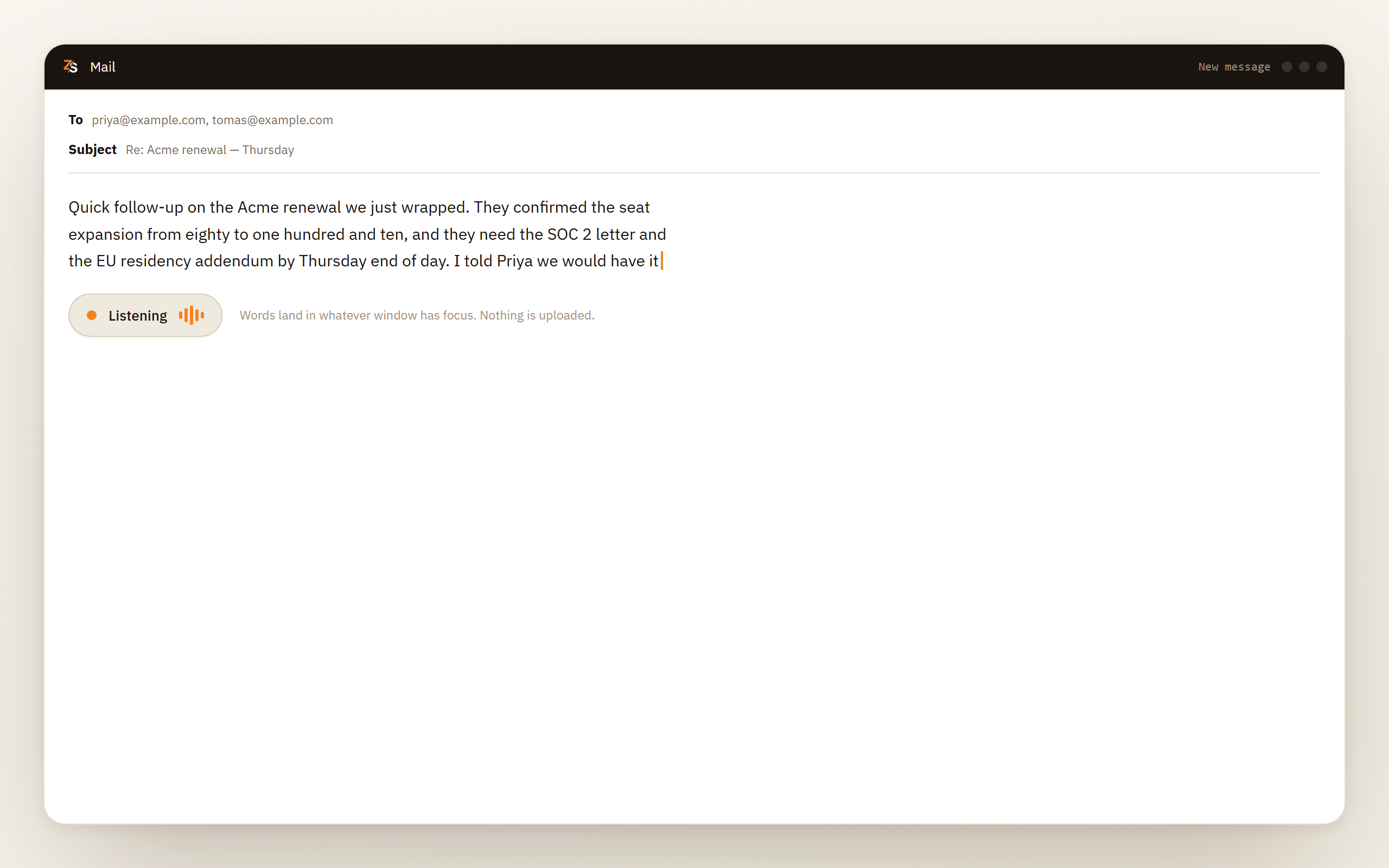
Hold the key while you speak and release when you are done, or press once to start and again to stop when you are drafting a longer passage. A small floating pill shows that Scribe is listening.
Speak, and watch the words arrive
Text appears as you say it rather than after a pause, because the speech model streams. Sentence-ending punctuation is added for you in English and Bulgarian, and paragraph breaks in every language.
Rework a sentence by selecting it and saying the change
Highlight a passage you almost like, hold the key and describe the fix. The replacement is typed over your selection. This part runs on Windows and macOS.
Read it back, then save
Scribe can mishear a word the way a typist mistypes one, so read the paragraph once before you move on. The document is an ordinary Word file and nothing in it records that the words were spoken.
The built-in option
Does Word have dictation built in?
Yes, and one version of it is free. Word for the web has a Dictate button for anyone signed in with a Microsoft account, and desktop Word has one that comes with a Microsoft 365 subscription. Either way, dictation in Word is not something your computer does. The audio from your microphone travels to a Microsoft speech service and comes back as text, and desktop Word shows the Dictate button only when your copy is entitled to use that service. When it looks broken, the cause is usually one of the two things that follow from this.
The licence. In desktop Word, Dictate comes with Microsoft 365, the subscription. A one-time purchase such as Word 2021 or Word 2019 does not include it, which is why the button is never found on those versions. It is not hidden and it is not greyed out. It was never installed. Word for the web needs no subscription at all, only a free Microsoft account.
The connection. Because the transcription happens on a server, Dictate needs the internet in every version of Word, and it needs that particular service to be reachable. A laptop with no signal, a hotel portal you have not signed in to, a VPN that routes oddly or a corporate proxy that has not been told about the service all produce the same thing: a button that looks alive and then does nothing.
After those two come the ordinary suspects: a microphone permission held by the operating system, and an input device that is not the one you are speaking into. If you have Microsoft 365 or work in Word for the web, and your connection is reliable, the built-in button works and there is no reason to replace it. Scribe is for every other case, and for the windows outside Word.
Diagnosis
What you are seeing in Word, and what is usually behind it
| What you see | Most likely cause | Where to look |
|---|---|---|
| No Dictate button anywhere on the ribbon | A one-time purchase such as Word 2021, an account with no Microsoft 365 subscription or a build old enough to predate the feature | Word's own account panel, which names the product you are licensed for |
| The button is there but greyed out | The document is open read-only, the only cause Microsoft lists for a greyed button | The title bar and the message bar under the ribbon, which say when a file is read-only |
| It starts and stops straight away | The microphone is blocked one level below Word, by the operating system | The microphone privacy settings on Windows, or Privacy and Security on macOS |
| It listens, but no words arrive | The wrong input device is selected, or it is muted in hardware | Your sound settings, watching the input level move while you speak |
| It works at home and not at the office | Connected experiences that analyse your content are switched off, or a policy blocks the service | Whether your organisation manages your Office settings, then whoever administers them |
| It worked yesterday and not today | No route to the service | Your connection first, then any VPN or proxy that sits in front of it |
Fixes
Getting the Dictate button working again
Find out what you are actually licensed for
Open Word's account panel and read what it says. If it names a one-time purchase rather than Microsoft 365, dictation is not part of what you bought and no setting in desktop Word will bring it back, although Word for the web still has the button once you sign in with a Microsoft account. Knowing this in the first minute saves the next thirty.
Sign in, then close every Word window and reopen
Entitlement is checked when the application starts. If you signed in while Word was already open, it may still be running on what it knew at launch. Restart it before you conclude anything.
Give Word the microphone at the operating system level
This permission belongs to Windows or macOS, not to Word. On Windows, Word has no switch of its own: desktop programs share one, Let desktop apps access your microphone, and it has to be on. On macOS, Word needs its own entry under Privacy and Security, and you usually need to quit and reopen Word after granting it.
Check which device is actually selected
A headset connected for output but not for input is the classic version of this. Open your sound settings, speak, and watch the input level move. If it does not move there, nothing further up the chain can help.
Try the same document on a different connection
If dictation works on a phone hotspot and not on the office network, the problem is the route to the service or a managed setting. That is a conversation with whoever administers your installation rather than something to fix in the ribbon.
Before you rely on it
What to know before you dictate documents with Scribe
Dictation is free while Scribe is in beta. Transcribing files and captioning what is playing on your screen are free on every plan, and dictating into other applications is a Pro feature — free for everyone while Scribe is in beta.
Two platform details matter for Word in particular. On macOS you grant Accessibility permission once, because typing into another application is exactly the kind of thing macOS asks you to approve deliberately. On Windows, a program running as administrator will not accept keystrokes from an ordinary one, so if your Word is elevated, Scribe has to be elevated too.
Twelve languages, each a separate model you install once. Sentence-ending punctuation is added for you in English and Bulgarian, and paragraph breaks in all of them.
Scribe does not know it is in Word. It types the same way into every window, so there is no Word-specific mode, no spoken formatting and no styles applied by voice. Headings, bold and numbering stay a keyboard job, which is a fast one.
Two platform rules: Accessibility on macOS, and Word running as administrator on Windows
Sending keystrokes into another program is a privileged act, and both operating systems treat it as one.
macOS. You grant Accessibility permission the first time you dictate, because the system requires a deliberate approval before any program may type into another. If you set a bare modifier key as your push-to-talk shortcut, Input Monitoring is asked for as well, since holding one key down is a separate capability from pressing a combination.
Windows. Privilege levels are a one-way boundary. A Word window opened as administrator will not accept input from a program that is not, so run Scribe at the same level. This applies to every ordinary program that types, Scribe included, and there is no setting on either side that gets around it. Windows makes an exception only for signed accessibility tools installed in a protected folder such as Program Files.
Remote sessions. If Word is running inside a remote desktop or a virtual machine, the keystrokes reach the client window and are forwarded from there like your typing. Behaviour then depends on that client rather than on Scribe.
Which languages get punctuation added for you, and what stays your job
What happens to the text before Scribe types it depends on the language, which matters if you write documents in more than one.
- Paragraph breaks are added in every supported language.
- Sentence-ending punctuation is added in English and Bulgarian only.
- Written forms for numbers, dates, times, currency, phone numbers, email addresses and links work in English, Bulgarian, German, Dutch and French.
- Your own replacements, where a trigger phrase expands into longer text, work in every language, because they are a text substitution rather than something the model has to understand.
Headings, lists, bold and page breaks are not in that list. Document structure stays a typing task by design.
Download Scribe Free plan. Dictation is free while Scribe is in beta.
Questions people ask
- Why is dictate in Word not working?
- In desktop Word, the usual cause is an account with no Microsoft 365 subscription or a machine that cannot reach the speech service the feature depends on. Word for the web needs no subscription, but it needs the same connection. Check the licence first and the connection second. Scribe sidesteps both, because it transcribes on your machine and types the result.
- Why is the Dictate button greyed out in Word?
- The only cause Microsoft lists is a document opened read-only. Make the file editable, or save a copy you can edit, and try again. A missing subscription usually removes the button altogether rather than greying it out.
- The Dictate button is missing in Word 2021. Where is it?
- It is not there to find. In desktop Word, Dictate ships with the Microsoft 365 subscription, and Word 2021 is a one-time purchase, so the feature is not part of that product. Nothing in the ribbon settings will add it. Word for the web has the button free with a Microsoft account, and a tool that types, such as Scribe, works in Word 2021 itself.
- Can I dictate into Word without a Microsoft 365 subscription?
- Yes. Word for the web includes Dictate for free when you sign in with a Microsoft account, as long as you are online. In desktop Word, use a tool that types rather than one that plugs into Office. Scribe transcribes on your own machine and sends the result as keystrokes, so Word treats it as typing and your Office licence never enters into it. Dictation is a Pro feature, free while Scribe is in beta.
- Can I dictate in Word offline?
- Not with the built-in Dictate button, which sends audio to a Microsoft service and needs a connection to do so. Scribe runs the speech model on your computer, so it works offline once your language is installed, which is the practical difference between the two.
- Does the Dictate button work in Word on a Mac?
- Yes, with a Microsoft 365 subscription and a connection, as on Windows. The microphone is where the Mac differs: Word needs its own entry under Privacy and Security, switched on. Quit and reopen Word after granting the permission, because it often does not take effect until you do.
Put the cursor in the document, hold the key and say a sentence. If it appears, you have dictation in Word, whichever Word you bought.