Transcribe Google Meet calls on your own computer, whatever edition anyone is on
Scribe records a Google Meet call on your own computer and gives you a transcript with speaker labels and a summary, host or guest. Meet's own transcripts start at Business Standard and follow the organiser's edition, so some calls get one and some do not. Meetings are free while Scribe is in beta.
Download Scribe Free plan for Windows and macOS. No card.
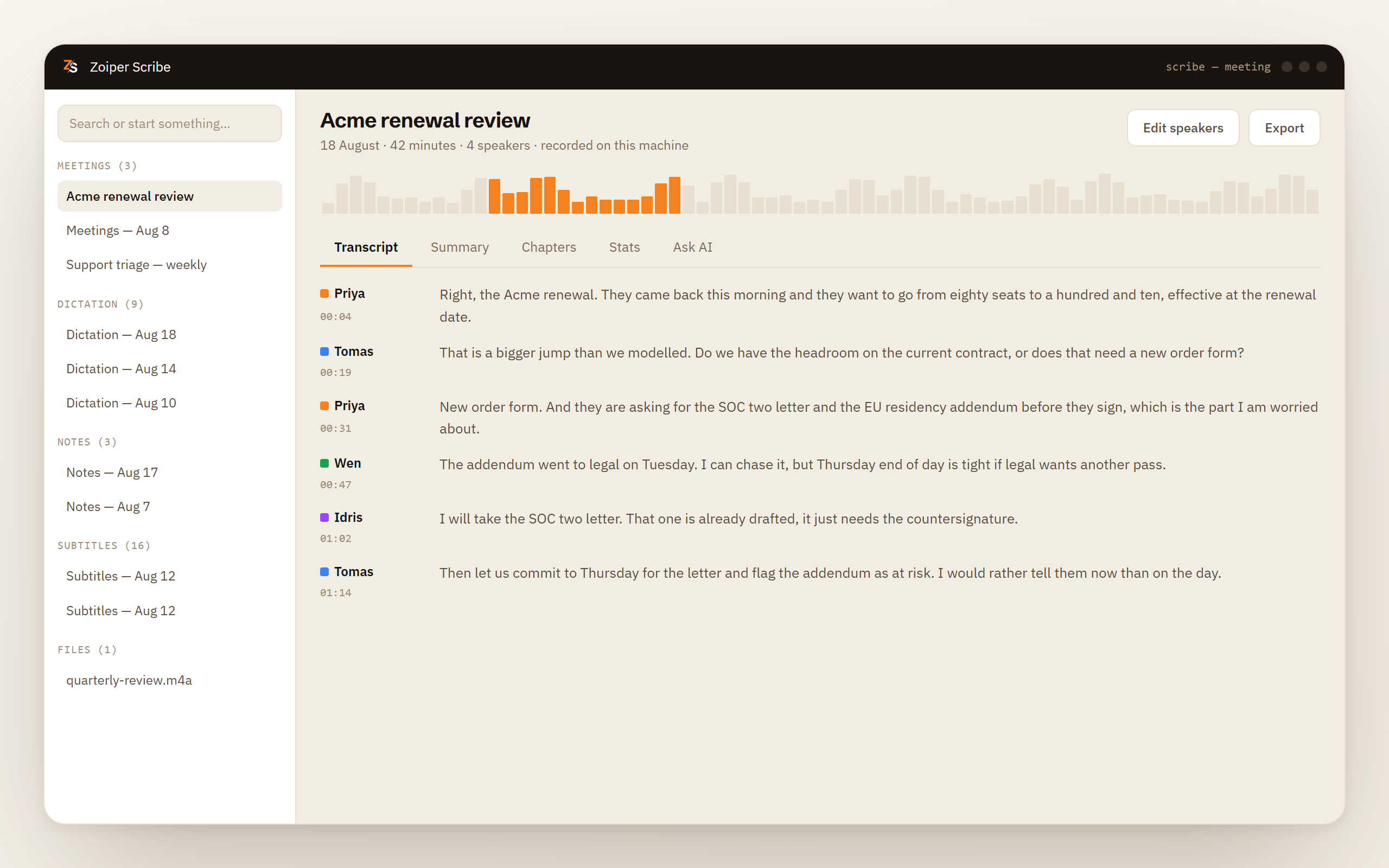
What Scribe does
One behaviour for every meeting you sit in
Records both halves of the call
Your microphone and the audio the browser is playing are captured at the same time, as two streams. Nothing joins the meeting, so no extra guest appears in the participant panel.
Speaker labels for up to four voices
Voices are separated on your machine and labelled. Because the labels come from the audio rather than from Meet, they behave the same in a call you organised and in one somebody invited you to.
Summary, chapters and action items
Written after the recording by a model running on your machine, or by your own cloud key if you supply one. Chapters break a long call into topics and action items name the person who took each one on.
A desktop application, not an extension
Nothing is added to Chrome and nothing is added to your Google account. Scribe captures system audio, which is why it also covers the meetings that never open in a browser at all.
How it works
From a browser tab to notes you can send on
Open the Meet link as usual
Any browser, any account, any edition, host or guest. There is nothing to install, no permission screen for your Google account and no administrator to ask.
Start recording
Press record, or let Scribe start on its own when it notices that a browser or call application has taken the microphone. That watching works on Windows and on macOS 14.2 or later.
The audio becomes a labelled transcript
Speech recognition and speaker separation both run on your processor, so the transcript is finished when the call is rather than when a service gets round to it.
Read it, search it, export it
Summary, chapters, action items and talk-time stats sit beside the transcript in your local history. Exports are TXT, Markdown, SRT, WebVTT, CSV and JSON.
Whose edition counts
Meet has transcripts, and the edition decides who gets them
Google Meet can write a transcript of a call. That feature starts at Business Standard and runs up through the higher editions, and Business Starter does not include it. The Gemini note taker sits on top of the same arrangement, and since June 2026 Google AI Pro and Ultra subscribers get it too, for meetings they host. If one of these comes with your organisation's edition or your own subscription, and you are the one calling the meeting, use it. You do not need us for that call.
The catch is which edition counts.
Whose edition counts is not yours. A transcript follows the meeting, and the meeting belongs to whoever organised it. You can be on a good edition all week and still sit in three calls with no transcript, because a client, a supplier or a recruiter organised them on something else. There is no way to tell in advance which of tomorrow's meetings will produce notes.
Business Starter has none of it. Small organisations land there often, and the answer to "how do I turn transcripts on" is a higher edition rather than a setting. Google lets an organisation mix paid editions, so only the people who host meetings need one with transcripts.
You want the transcript on your own disk. A Meet transcript goes where Google Workspace puts it, under your organisation's rules. Scribe writes an audio file and a transcript into a folder on your machine and leaves them there.
Not every meeting is on Meet. A Teams call, a Zoom link, a softphone call with a supplier. Scribe records the sound your computer is playing, so all of them produce the same kind of notes in the same place.
The trade
No extension, no Marketplace listing, and no participant list either
Scribe records the sound your computer makes. Everything good and everything annoying about it follows from that one sentence.
The good part is that no product has to cooperate with us. There is no Chrome extension, no Workspace Marketplace listing, no OAuth screen handing over your calendar or your Drive, and no administrator deciding whether you may install it. Google Meet, Teams, Zoom, Webex, a webinar you are watching, a voice note playing back. If the machine plays it, Scribe can capture it, and Google never learns that any of this happened.
The annoying part is that Scribe knows nothing Meet knows. It cannot read the participant list, so the voices arrive as Speaker 1 and Speaker 2 until you rename them once. It cannot see the chat, the invitation, the attached document or who was in the waiting room. It hears what you hear and works from that.
Nothing joins the call and Google sends no notice on our behalf, so the other side sees exactly what it would see if you were taking notes by hand. That leaves the disclosure to you, and in many places it is not optional. Some jurisdictions require every participant to agree before a conversation is recorded, some require only one, and a lot of employers have their own rule on top. Where the processing happens changes none of it. Say it at the start.
What to know before you rely on it
Recording a meeting with a summary is a Pro feature, free while Scribe is in beta. Live subtitles and transcribing a file you already have are free.
- Capturing your computer's audio needs macOS 12.3 or later and Screen Recording permission. Windows uses loopback.
- Speaker labels cover up to four voices in one recording.
- Labels, not names. Scribe cannot read the Meet participant list, so you rename the speakers once yourself.
- Twelve languages, each a model on your disk. Automatic punctuation and number formatting are not available in every language yet. More languages are coming.
Auto-start needs macOS 14.2, live labels want six cores, and what the saved files look like
| What you get | The detail |
|---|---|
| Recording starting on its own | macOS 14.2 or later. No extra requirement on Windows. |
| Labels while people talk | At least six CPU cores. Below that, Scribe applies the labels when the recording stops. |
| The saved files | An Opus audio file and a transcript in a local folder. Exports are TXT, Markdown, SRT, WebVTT, CSV and JSON. |
| Modest hardware | Under 16 GB of memory or no GPU on Windows gets a warning before speaker separation or a summary runs. |
Download Scribe Free plan for files and captions. Meetings are free while Scribe is in beta.
Questions people ask
- Is Google Meet transcription free?
- Not on every edition. Transcripts start at Business Standard, Business Starter does not include them, and which meetings get one depends on the edition of whoever organised the call. Scribe's free plan covers live subtitles and transcribing recordings you already have, while recording a meeting with speaker labels and a summary is part of Pro — free while Scribe is in beta, and eight dollars a month afterwards.
- Why is there no transcript button in my Google Meet?
- Usually because of the edition, either yours or the organiser's, or because an administrator has switched the feature off for the organisation. It is also missing when you are a guest from outside the organiser's organisation and not a co-host. There is no setting on your side that produces the button in someone else's meeting, which is why recording your own machine is the only route that behaves the same every time.
- Do I need a Chrome extension to transcribe Google Meet?
- Not for this. Scribe is a desktop application that captures the audio your computer plays, so it never touches the browser, your Google account or your calendar. That is also why it works for calls that are not in a browser at all.
- Will anyone in the meeting be told?
- Nothing joins the call and Google sends no notice on our behalf, so the participant list looks exactly as it would otherwise. Telling people is therefore your job, and depending on where everyone is sitting it may also be a legal requirement.
- Can it label who said what?
- Speaker separation runs on your machine and handles up to four voices in one recording. Because Scribe cannot see the Meet participant list the labels start generic, and once you rename them the names stick, along with roles, companies and a talk-time breakdown.
Google Meet transcripts exist and they are good. Whether you get one is decided by a billing arrangement you may have no part in. Recording from your own side removes the question, and it leaves the recording, the transcript and the summary of that call as files on your laptop rather than rows in somebody’s account.