Dictate in Outlook with your microphone, whichever Outlook you open
Scribe dictates into Outlook by typing what you say where the cursor sits, in the classic desktop app, the new Outlook, the web version and Outlook for Mac. Dictation is free while Scribe is in beta, in twelve languages, and macOS asks for the Accessibility permission once.
Download Scribe Free plan for Windows and macOS. No card.
What you get
What Scribe does in Outlook
It types into the reply you already opened
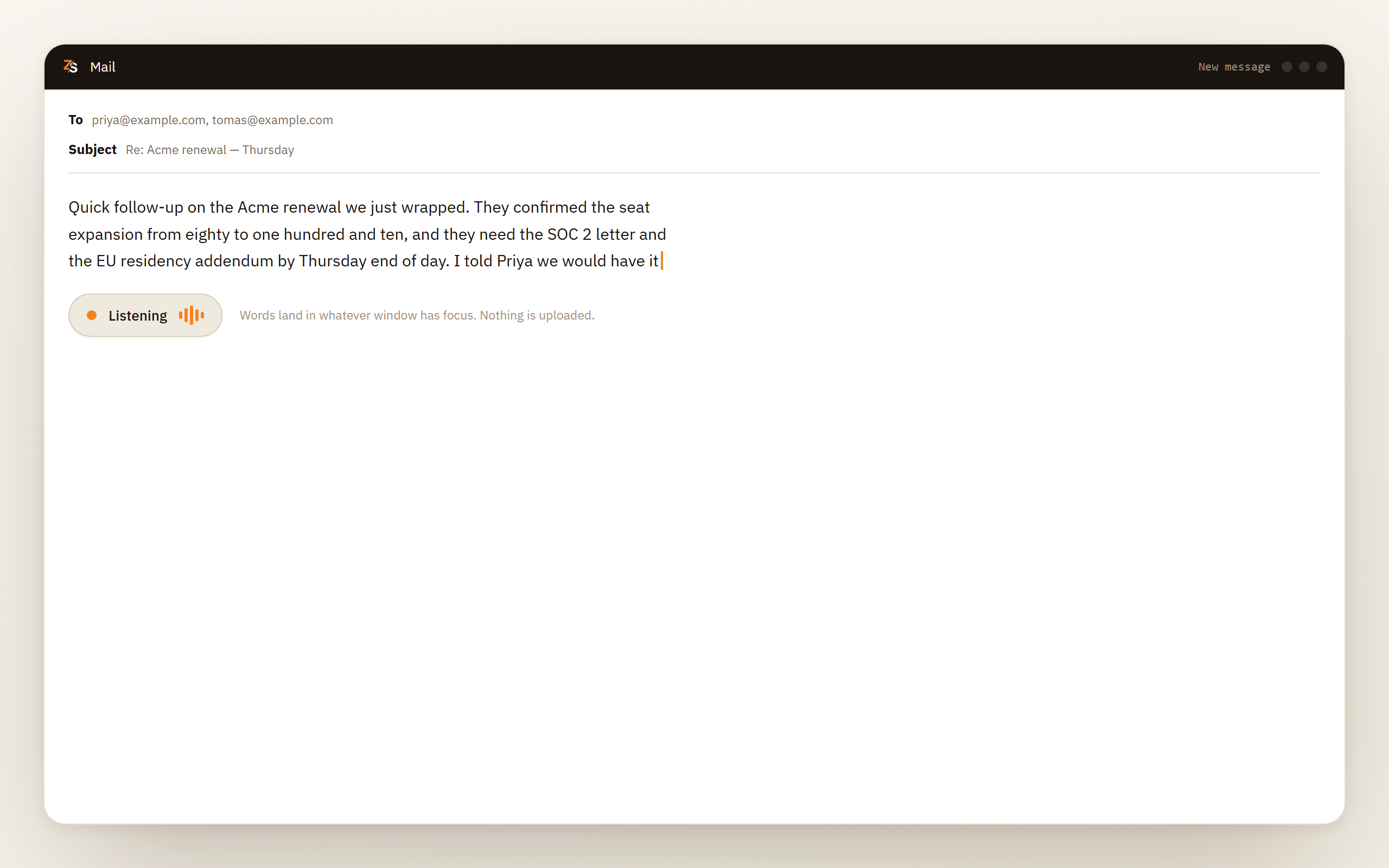
Scribe sends keystrokes to whatever has focus. Put the cursor in the message body, press the shortcut and talk. The quoted thread below stays exactly where it was, because nothing is being replaced.
The same tool in every Outlook
Classic, new, in a browser, or on a Mac. None of them is a special case for Scribe, because none of them is being asked to provide the speech service. The same applies to a mail client that is not Outlook at all.
Your own shorthand, expanded
Say a trigger phrase and it becomes whatever you defined, which is how you stop dictating the same closing line, address or reference number several times a day. Smart Replacements work in every supported language.
It keeps working with the network off
The speech model is on your disk. You can draft replies on a plane or on a locked-down network and let them leave the outbox when the connection comes back.
How it works
How you dictate a reply in Outlook with Scribe
Open the reply and click into the body
Put the cursor under the greeting, or wherever the text belongs. Scribe types at the caret, so the one thing to check is that it is blinking in the message and not in the subject line.
Hold the shortcut, or press it
Hold the key for a sentence and release when you are done, or press once to start and again to stop for a longer reply. A small floating pill shows that Scribe is listening.
Say the reply
Words arrive while you are still speaking, because the speech model streams rather than waiting for a pause. Paragraph breaks are added in every language, and sentence-ending punctuation in English and Bulgarian.
Read it once, then send
Scribe can mishear a word the way a typist mistypes one, so give the reply five seconds of your eyes. On Windows and macOS you can select a sentence and say the correction instead of retyping it.
The built-in option
Does Outlook have dictation built in?
Yes, and whether it needs a subscription depends on which Outlook you are in. Outlook is no longer one program. There is the classic desktop application, the newer Outlook for Windows that is built on the same web composer as Outlook in a browser, Outlook on the web itself and Outlook for Mac. They look similar enough that a missing button reads as a broken setting, when the real answer is often that you are in a different application from the one you were in last week.
Underneath all of them, the built-in dictation is the same Microsoft cloud service that Word uses. The audio leaves your machine and comes back as text, so every Outlook needs a connection for it. The licence is where they differ. As of September 2026, Dictate is available to everyone in the new Outlook for Windows and in Outlook on the web, Outlook.com accounts included, while classic Outlook for Windows and Outlook for Mac offer it only with a Microsoft 365 subscription. So the three questions to ask, in order, are which Outlook this is, whether that Outlook needs a subscription your account does not have and whether it can reach the service.
Only after those does it make sense to look at the microphone. When the permission genuinely is the problem, the symptom is specific: dictation starts, the indicator appears, and then nothing is written. That is the operating system declining to hand over the audio, one level below Outlook. If your Outlook offers Dictate to your account and you have the connection, the built-in button works and you can keep using it. Scribe is for the mornings when one of those is missing, and for every window that is not Outlook.
Diagnosis
Four Outlooks, and what usually goes wrong with the built-in button
| Which Outlook | How dictation gets there | What usually goes wrong |
|---|---|---|
| Classic Outlook on Windows | A Dictate button in the message window, from your Microsoft 365 subscription | A one-time purchase, or a lapsed sign-in, leaves nothing to press |
| The new Outlook for Windows | The same web composer that Outlook in a browser uses, wrapped in a desktop window, with Dictate for every account and no subscription needed | Features move across on their own schedule, so something you had in classic may not be in the same place yet |
| Outlook on the web | The browser composer, calling the same service, for every account including Outlook.com | The browser holds its own microphone permission, separate from the operating system one, and both have to be granted |
| Outlook on macOS | A Dictate button in the message window, from your Microsoft 365 subscription, with macOS holding the microphone permission | Outlook has to be listed under Privacy and Security, and it often needs a restart after you add it |
Fixes
Getting Outlook's own Dictate button working again
Confirm which Outlook you are in
The new Outlook for Windows and the classic one can both be installed at once, and a toggle switches between them. If dictation vanished overnight, check that first, because the two are separate applications with separate feature sets, and only the classic one needs a subscription for Dictate.
Check the account, then restart
In classic Outlook for Windows and in Outlook for Mac, Dictate comes with a Microsoft 365 subscription. Confirm that the account Outlook is signed in with carries one, and if you signed in while Outlook was open, close it fully and reopen it. Entitlement is read at startup. The new Outlook and Outlook on the web need no subscription for it.
Grant the microphone in the right place
In the desktop applications, the operating system holds the permission. On Windows, classic Outlook has no switch of its own: desktop programs share one, Let desktop apps access your microphone, and it has to be on. On a Mac, Outlook needs its own entry under Privacy and Security. In a browser, there are two layers: the site permission for that page and the operating system permission for the browser itself. Both must be on.
Compare the browser with the desktop app
If dictation works in one and not the other, you have learned a lot. Working in the browser and not the desktop points at the desktop application's permission or licence, because the web version needs no subscription at all. The reverse points at the site permission or the browser's own microphone access.
Check the input device and the network
Watch the input level move in your sound settings while you speak, which rules the hardware in or out. Then try a different connection, because the service has to be reachable and a managed network does not always allow it.
Before you rely on it
What to know before you dictate mail with Scribe
A reply is ordinary prose. You already know what you want to say, and typing is the slow part, which is why correspondence is where speaking instead of typing is felt most.
Dictation is free while Scribe is in beta. File transcription and live captions are free on every plan, and dictating into other applications is a Pro feature — free for everyone while Scribe is in beta.
Two platform details. On macOS, typing into another application needs Accessibility permission, which macOS asks you to grant deliberately. On Windows, an application running as administrator will not accept keystrokes from an ordinary one, so if Outlook is elevated, Scribe has to be elevated too.
Twelve languages, each installed once and then held on your own disk. Sentence-ending punctuation is added in English and Bulgarian. In the others you speak the words and add the punctuation yourself, while paragraph breaks are handled everywhere.
Scribe does not know it is in Outlook. It types the same way into every window, so there is no mail-specific mode and nothing that reads the thread you are replying to. It cannot see your inbox, which is the point.
Why the quoted thread survives, and the one case where dictated text replaces something
Scribe inserts text at the cursor, the way typing does, so everything below the caret is left alone. A reply dictated above a long quoted thread leaves the thread intact, and a sentence dictated into the middle of a paragraph pushes the rest of the paragraph along.
The one deliberate exception is a selection. If you highlight text and then dictate, the selection is replaced, exactly as it would be if you typed. On Windows and macOS that is also how you rework a sentence: select it, hold the key and describe the change, and the rewritten version lands in its place.
A compose editor that reformats while you type can occasionally drop a character or move the caret while a sentence is still being refined. If that happens, there is a setting that waits for the finished sentence and inserts it in one go. Slightly slower to feel, considerably more reliable.
What Scribe needs on macOS and Windows before it can type into Outlook
macOS. Accessibility permission, granted once, because sending keystrokes to another application is something the system requires a deliberate yes for. If your push-to-talk shortcut is a bare modifier key, Input Monitoring is asked for as well, since holding one key down is a separate capability from pressing a combination.
Windows. Nothing extra for an ordinary Outlook. A window running as administrator will not accept input from a program that is not, so if you launched Outlook elevated, run Scribe elevated too. This is a Windows security boundary, and every ordinary program that types is subject to it, Scribe included. The one exception is for signed accessibility tools installed in a protected folder such as Program Files.
Outlook on the web. The browser is not involved in the transcription, so there is no site permission to grant and no extension to install. Chrome, Edge, Firefox and Safari all receive the keystrokes the same way.
Download Scribe Free plan. Dictation is free while Scribe is in beta.
Questions people ask
- Outlook dictate microphone not working. What should I check?
- Check the operating system's microphone permission before anything inside Outlook, because that is the layer that produces this exact symptom. On Windows, desktop programs such as classic Outlook share the Let desktop apps access your microphone switch. On macOS, Outlook needs its own entry under Privacy and Security, and you should quit and reopen it after granting it. If you are in a browser, the site permission is a second, separate layer.
- Why is dictation not working in the new Outlook?
- The new Outlook for Windows is a different application from the classic one, built on the web composer, and it offers Dictate to every account. If the button is there and nothing happens, check the connection and the microphone permission. If the button vanished without you changing a setting, check the new Outlook toggle, because classic Outlook, which needs Microsoft 365 for Dictate, may be the one now open.
- Dictation works in Outlook on the web but not in the desktop app.
- That shows your microphone and your connection are fine, but it says nothing about a licence, because Outlook on the web needs no subscription. If the desktop app is classic Outlook or Outlook for Mac, check that it is signed in with an account that has Microsoft 365. Then check that Windows, or macOS on a Mac, allows it the microphone.
- Do I need a Microsoft 365 subscription to dictate in Outlook?
- Only in classic Outlook for Windows and Outlook for Mac, where the Dictate button comes with the subscription and a one-time purchase of Office does not include it. The new Outlook for Windows and Outlook on the web offer Dictate to everyone, Outlook.com accounts included, although every version needs a connection for it. Scribe types keystrokes and needs nothing from your Office licence at all. Dictation is a Pro feature, free while Scribe is in beta.
- Can I dictate an email offline?
- Not with the built-in feature, which sends your audio to a Microsoft service for transcription. Scribe runs the speech model on your own machine, so the draft is written offline and the message waits in your outbox until you are back online.
- Will dictating over a reply delete the quoted message?
- Not when the text is typed in at the cursor, which is what Scribe does. Place the cursor where you want the reply and speak, and everything below it is left alone. Selecting text first is the one case where the selection is replaced, which is deliberate.
Open a reply, put the cursor under the greeting and say what you would have typed. That is the whole setup, in whichever Outlook you happen to be in.