Dictation that keeps working when the built-in feature does not
Scribe is dictation that runs on your own computer and types into whatever window has focus, so it does not stop when a service, a licence or a browser does. Dictation is free while Scribe is in beta, in twelve languages, on Windows and macOS, and macOS asks for one Accessibility permission.
Download Scribe Free plan for Windows and macOS. No card.
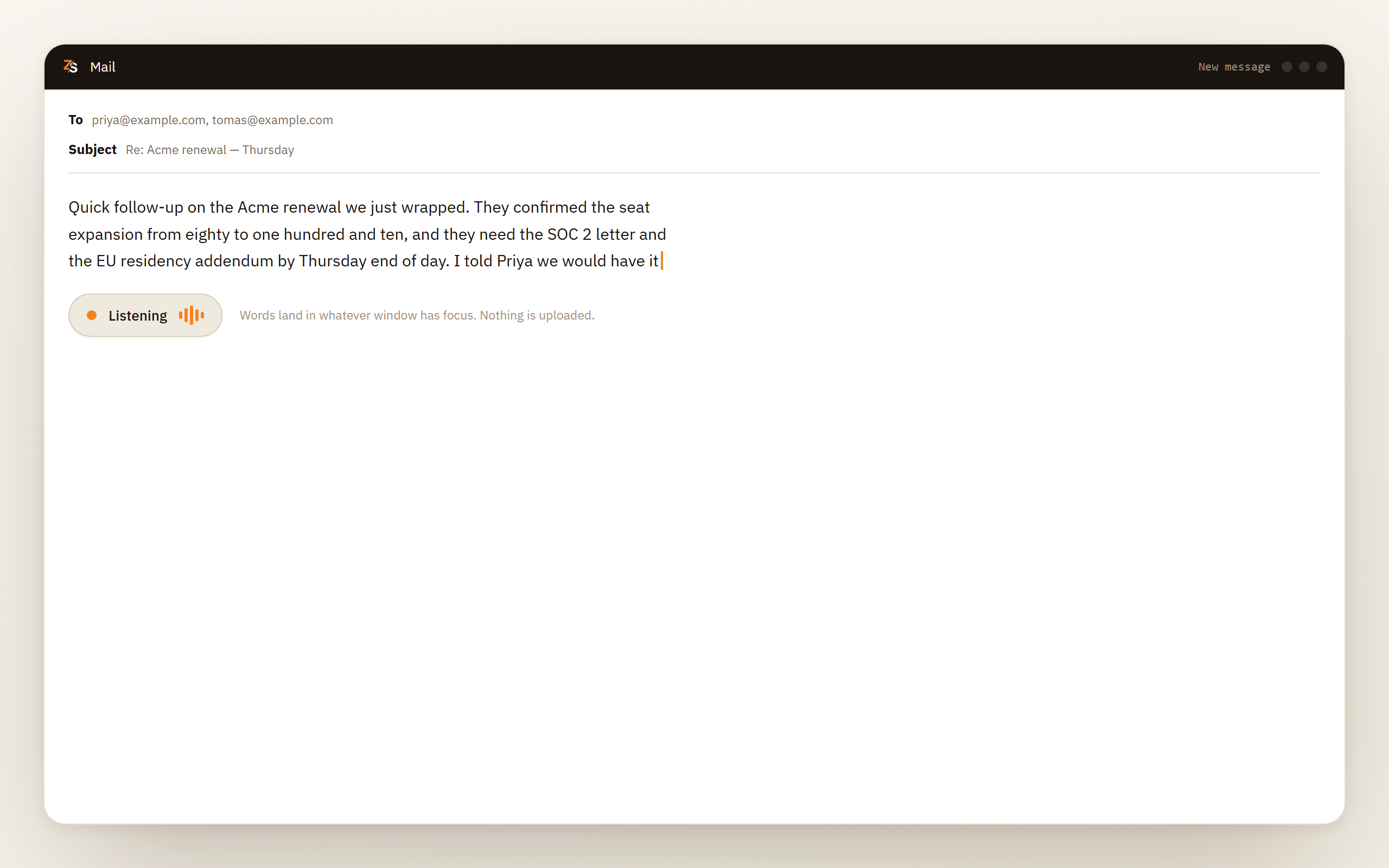
Why Scribe keeps working
Fewer things that have to be true at nine in the morning
No service to reach while you speak
The speech model is a file on your disk. Once your language is installed, Scribe does not care about the network, a proxy, an outage or a captive portal, because it is not calling anything.
No licence in the middle of the sentence
Scribe checks your plan when you sign in, not per sentence, and keeps working through a licensing outage. Your Office subscription, your browser and your account with anyone else are not part of the chain.
One permission, granted once
A microphone permission, plus Accessibility on macOS because typing into another application is something macOS asks you to approve on purpose. After that there is no per-site prompt and no extension to authorise.
The same behaviour in every application
Scribe types keystrokes, so an application either accepts typing or it does not. There is no per-application feature list to check, which is what makes the failures predictable.
How it works
How you get dictation working with Scribe
Install it and add your language
Each language is a model that downloads once and stays on your disk. All twelve are included. Dictation itself is a Pro feature, free while Scribe is in beta.
Allow the microphone, and Accessibility on macOS
Scribe asks for the microphone the first time you dictate. On macOS it also asks for Accessibility, because typing into another application needs a deliberate approval. Windows needs nothing further.
Put the cursor where the text should go
Any text field in any application. There is no list of supported programs and nothing to configure for the one you are in.
Press the shortcut and speak
Hold the key for a sentence, or press once to start and again to stop for a paragraph. A small floating pill shows that Scribe is listening, and words appear while you are still talking.
Read it once
Scribe can mishear a word the way a typist mistypes one, and it does not invent words that were not said. On Windows and macOS you can select a sentence and say the correction rather than retyping it.
Fixing the built-in feature
Five checks that apply on any machine
Prove the microphone works somewhere else
Open your sound settings and watch the input level move while you speak, or record two seconds in any recorder. If the meter does not move, nothing above it can work, and no permission or setting will change that.
Check which input device is selected
A headset connected for output but not for input is a common cause of a dictation feature that appears to listen and writes nothing. Bluetooth devices are the usual offender, because they can be connected in one direction only.
Look at the operating system's microphone permissions
Both operating systems decide which programs may use the microphone, separately from any setting inside the application. On Windows, desktop programs such as Word or your browser share one switch, Let desktop apps access your microphone, and may not appear in the list of apps at all. On macOS, the list under Privacy and Security matters for applications that take the microphone themselves, such as a browser or Word with its own Dictate button, and not for the Mac's own dictation.
Restart the application after granting anything
Permissions are usually read when a program starts. Granting access to a running application often changes nothing until you quit it completely and open it again, which is why a fix can look like it failed.
Try it offline and then online
Many built-in dictation features send audio to a server. If it works on a phone hotspot and not on your usual network, you are looking at a blocked route rather than a broken microphone, and the fix belongs to whoever runs the network.
Windows
Voice typing, Voice Access, and what each one needs
Voice typing needs a connection. The panel you open with the Windows key and H uses online speech recognition, which means your audio is sent away to be turned into text. No connection, no words. Voice Access is the built-in exception, and it keeps working offline.
There is a speech switch as well as a microphone switch. Windows keeps online speech recognition as its own privacy setting, separate from microphone access. Both have to be on, and turning one off is a quiet way to disable voice typing without disabling the microphone.
The microphone settings have more than one level. There is an overall switch for microphone access and, under it, a list of apps with a switch each. Desktop programs, which include Office and most browsers, get no switch of their own there. They share a single one, Let desktop apps access your microphone, and may not appear in the list at all. An application blocked at any of these levels gets silence rather than an error message.
The default input device is a setting, not a guess. Windows sends dictation to whichever device is set as the default input, not to the one you are speaking into. Plugging in a headset does not always change it.
Voice typing and Voice Access are different features. Voice typing is the dictation panel. Voice Access, on Windows 11 22H2 and later, is an accessibility feature that lets you control the machine by voice as well as dictate into it, and once its speech files have downloaded it works without an internet connection. In September 2024 it replaced the older Windows Speech Recognition, the one with a setup wizard and its own control panel, on those versions of Windows 11. Windows 10 still has Windows Speech Recognition. That is why guides written a few years ago describe screens a Windows 11 machine no longer has.
macOS
The toggle, the microphone and where your audio goes
Dictation is off until you turn it on. It lives in the keyboard section of System Settings, with a key press that starts it. If nothing happens when you press the shortcut, the feature may never have been enabled, or the shortcut may be set to a key combination you are not pressing.
The Mac's own dictation has no per-app microphone step. It listens through the microphone chosen under Dictation in the keyboard settings, so check that choice first. Privacy and Security matters for applications with their own dictation, such as Word, which need an entry there. Quit and reopen such an application after you grant it, because the change frequently does not take effect in a running program.
Where the audio goes depends on your Mac. Some Macs transcribe on the machine once the language's speech model has downloaded. Others send what you say to Apple, so a poor connection shows up as dictation that hesitates or gives up. The Dictation section of the keyboard settings shows which applies to yours, and two Macs on the same desk can behave differently for this reason alone.
A language has to finish downloading. Adding a language to dictation pulls files down in the background, and until that finishes the results are patchy in a way that looks like poor recognition rather than an incomplete install. Give it time on a good connection before drawing conclusions.
It stops on its own after thirty seconds of silence. Apple sets no limit on how long you can dictate, but a pause of thirty seconds ends the session, so dictation that switches itself off while you think is normal behaviour rather than a fault.
The application
When the fault is the app rather than the machine
| Where it stops | What is usually behind it |
|---|---|
| Microsoft Word | Desktop Word's Dictate button comes with a Microsoft 365 subscription, so a one-time purchase such as Word 2021 has none, while Word for the web offers it free with a Microsoft account. Every version uses a cloud service, and no connection means no text |
| Outlook | The same service, but there are now several Outlooks. Classic, the new Windows one and the browser version gain features on different schedules, and only classic Outlook and Outlook for Mac need Microsoft 365 for Dictate |
| Gmail | Gmail has no dictation of its own on the desktop, so whatever broke was the operating system or a browser extension. Fix that, not Gmail |
| Google Docs | Voice typing works in the latest Chrome, Edge and Safari but not in Firefox, and it needs a connection. The browser runs the speech service, and voice typing stops listening whenever its tab loses focus |
| Anything else | If the operating system's dictation works in one application and not another, the application is refusing the keystrokes rather than the microphone failing. Elevated windows on Windows are the usual example |
Before you rely on it
What to know before you switch to Scribe
Scribe is not exempt from the permission layer. It needs the microphone like anything else, and on macOS it needs Accessibility because it types into other programs. What it does not need is a subscription to something else, a route to a server, or a particular browser. The speech model runs on your machine and the result arrives as keystrokes. That is a shorter chain, and a shorter chain breaks in fewer places.
Dictation is free while Scribe is in beta. Transcribing files and captioning what is playing on your screen are free on every plan with no time limit, and dictating into other applications is a Pro feature — free for everyone while Scribe is in beta.
Windows keeps privilege levels apart. A window running as administrator will not accept keystrokes from an ordinary program, so if the application you are dictating into is elevated, Scribe has to be elevated too. There is no setting on either side that gets around it.
Twelve languages, each a model you install once. Sentence-ending punctuation is added for you in English and Bulgarian, and paragraph breaks in all of them. Editing a selected sentence by voice runs on Windows and macOS.
Where the built-in feature works for you, keep using it. Scribe is for the mornings when it does not, and for the applications that never had one, which includes Gmail, every CRM and every chat client.
What Scribe cannot fix: elevated windows, remote sessions and fields that reject typed input
Working by keystrokes is what makes Scribe universal, and it inherits the operating system's rules about who may send keystrokes to whom.
Elevated windows on Windows. An ordinary program cannot send input to a window running at a higher privilege level. An administrator console, an installer or a management tool launched as administrator will ignore Scribe unless Scribe is elevated as well.
Remote desktop and virtual machines. The keystrokes reach the client window on your machine and are forwarded from there, exactly as your typing is. Whether they arrive cleanly depends on that client rather than on Scribe.
A few applications reject synthetic input or repaint the field while text is still arriving. For those there is a setting that waits for the finished sentence and inserts it in one go, which is slightly slower and considerably more reliable.
A bare modifier key as the shortcut on macOS needs Input Monitoring in addition to Accessibility, because holding one key down is a separate capability from pressing a combination.
Which languages get punctuation added for you
Twelve languages can be dictated, each a model on your own machine, and all twelve are included.
What happens to the text before it is typed depends on the language.
- Paragraph breaks are added in every supported language.
- Sentence-ending punctuation is added in English and Bulgarian only.
- Written forms for numbers, dates, times, currency, phone numbers, email addresses and links work in English, Bulgarian, German, Dutch and French.
- Your own replacements, where a trigger phrase expands into longer text, work in every language, because they are a text substitution rather than something the model has to understand.
All of it runs on your machine, so none of the text goes anywhere to be tidied.
Download Scribe Free plan. Dictation is free while Scribe is in beta.
Questions people ask
- Why is my dictation not working?
- Work down the chain rather than guessing. Confirm the microphone level moves, confirm the operating system is not blocking the microphone, restart the application, then check whether the feature needs a connection or a licence you no longer have. Scribe removes the last two from the chain.
- Voice typing is not working on Windows 11. What do I check?
- Check that online speech recognition is switched on in the privacy settings, since voice typing sends audio away to be transcribed and stops without it. Then check that microphone access is switched on in the same privacy settings, and confirm the default input device is the one you are speaking into.
- Dictation is not working on my Mac. Where do I start?
- Confirm dictation is enabled in the keyboard settings and check which microphone is chosen under Dictation there, because the Mac's own dictation has no per-app microphone step. If the application has its own dictation, as Word does, it needs an entry under Privacy and Security, and you should reopen it afterwards. If you added a language recently, let its download finish before judging the results.
- What is the difference between voice typing and Voice Access?
- Voice typing is the dictation panel that writes what you say into the focused field. Voice Access is a broader accessibility feature that also controls the machine by voice, and once its speech files have downloaded it works without a connection. It is on Windows 11 22H2 and later, where it replaced Windows Speech Recognition in September 2024.
- Does Windows voice typing work offline?
- No. It relies on online speech recognition, so the audio leaves the machine to be transcribed and the feature stops when the connection does. Voice Access, on Windows 11 22H2 and later, is the built-in feature that works offline. Running the model locally is what makes that possible, and it is what Scribe does, in any window.
- Why does dictation work in one app but not another?
- Because the failure is in the application rather than the microphone. Some applications provide their own dictation feature with its own licence, and on Windows a window running as administrator will not accept keystrokes from an ordinary program, Scribe included.
Install Scribe, add your language, put the cursor in any window and say a sentence. If the words appear, you are done diagnosing.