Voice typing for Google Docs that works in any browser
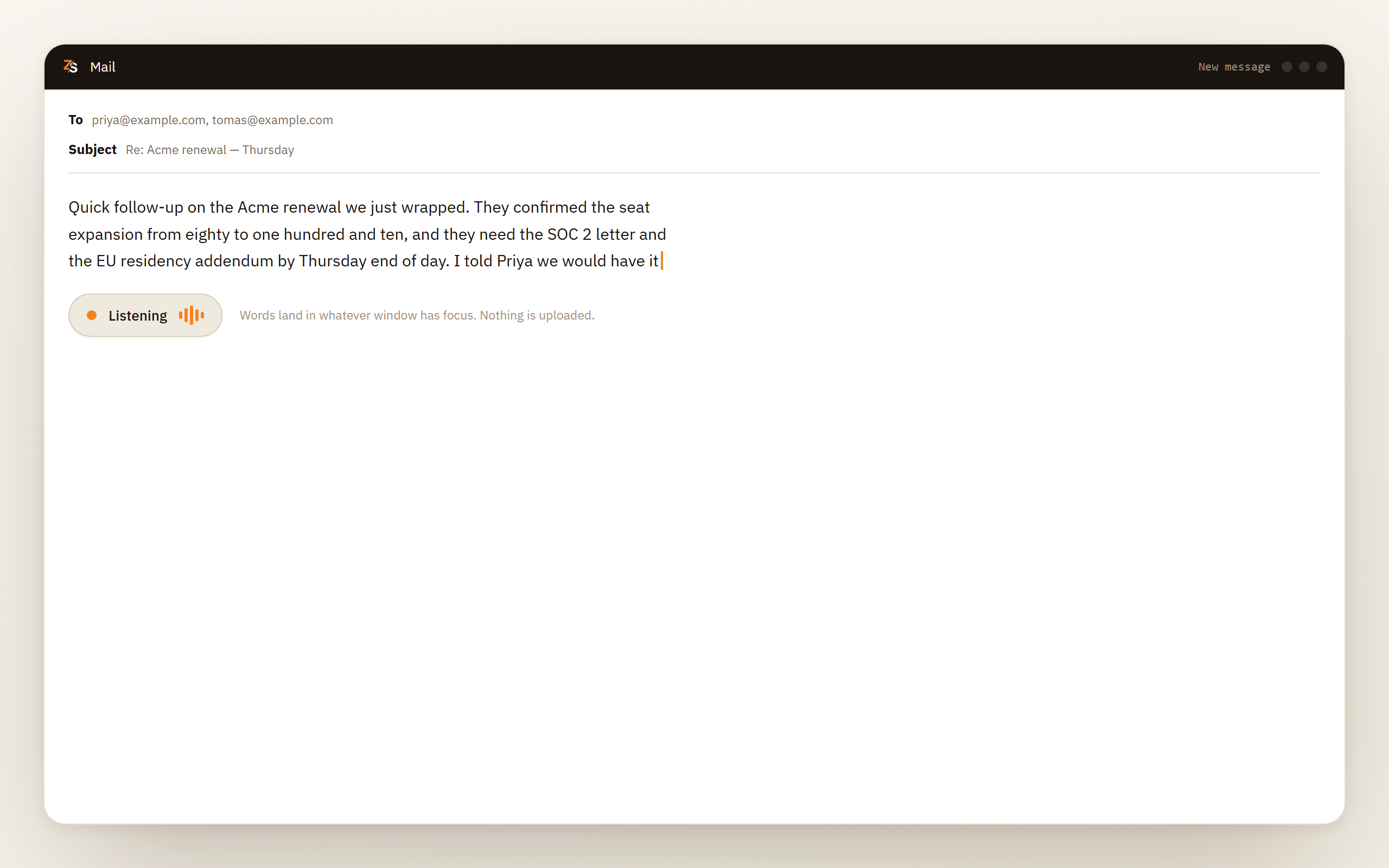
Scribe types what you say into a Google Doc in Safari, Firefox, Edge or Chrome, keeps going when you switch tabs, and does not need a connection. Dictation is free while Scribe is in beta, in twelve languages, and macOS asks for the Accessibility permission once.
Download Scribe Free plan for Windows and macOS. No card.
What you get
What Scribe does in Google Docs
No browser is a special case
Scribe types keystrokes into whatever has focus, so a document in Safari or Firefox behaves exactly like one in Chrome. The same is true of the desktop editor you switch to next.
Switching tabs does not stop it
Nothing is tied to the tab that has focus. You can check a source in another window and come back, and the words go wherever the cursor is when you speak.
Sheets, Slides and everything else
A cell, a speaker note, a comment box, a chat window, a ticket field or a code comment. Anything that accepts typed text accepts dictation from Scribe, because typing is all it is receiving.
It runs with the network off
The speech model sits on your disk, so Scribe keeps typing through an offline train journey. If you switched on offline access for Docs in Chrome or Edge beforehand, Docs holds your edits and syncs them when the connection returns.
How it works
How you dictate in Google Docs with Scribe
Put the cursor in the document
Click on the line where the text should go, in whichever browser you already use. Scribe types wherever the caret is blinking, and nothing is set up for Docs in particular.
Hold the shortcut for a sentence, press it for a draft
Hold the key while you speak and release when you are done, or press once to start and again to stop for a long passage. A small floating pill shows that Scribe is listening.
Dictate the draft in one pass
Words appear as you say them, because the speech model streams. Carry on to the end of the thought rather than fixing each sentence as it lands. Reading back a finished paragraph is faster than repairing one in flight.
Rework a passage by selecting it and saying the change
Highlight a paragraph you almost like, hold the key and describe the fix, and the rewritten version is typed over the selection. This runs on Windows and macOS.
Read it back, then keep going
Scribe can mishear a word the way a typist mistypes one, so read the passage once. The document is an ordinary Google Doc and nothing in it records that the words were spoken.
The built-in option
Does Google Docs have voice typing built in?
Yes, under Tools, and when it runs it runs well. If you work in a supported browser, online, in one window at a time, it will do the job and there is no reason to replace it. The catch is that it lives in the browser, which sends your voice to an online speech service of its own choosing (Google's, in Chrome), and that gives it a shape a desktop application does not have.
It needs a supported browser. As of September 2026 that means a current version of Chrome, Edge or Safari. Open the same document in Firefox and the menu entry is not there. Nothing is broken and there is nothing to enable.
It can stop when its tab loses focus. Switch to another tab or another window and voice typing sometimes switches itself off. Anything you say after that is not queued and not recovered. If sentences go missing while you glance at a source document, check this first.
It needs a connection. The words are recognised by that online service, so an offline laptop, a captive portal or a network that blocks the route gives you a microphone that appears to listen and produces nothing.
Underneath those sit the ordinary two: the browser's permission for the site, and the operating system's permission for the browser. Both have to be granted, and granting one is the classic half-fix. Scribe sits outside the browser, so it needs only the operating system's permission, and none of the three points above applies to it.
Diagnosis
What Google's voice typing needs, and what happens when it is missing
| What it needs | What you see when it is missing |
|---|---|
| A supported browser | No voice typing entry in the Tools menu at all, in any document. Current versions of Chrome, Edge and Safari have it, and Firefox does not |
| The tab in front | It can stop mid-sentence when you switch away, and words spoken in the meantime are gone |
| A live connection | The microphone icon activates and no text arrives, because the transcription happens on a server |
| Permission for the site | A crossed-out microphone in the address bar, and a prompt that will not reappear until you clear the decision |
| Permission for the browser | The browser cannot open the microphone at all, so no site inside it can either. Windows and macOS decide this apart from the site |
| A supported surface | It is a Docs feature. Slides has only Dictate speaker notes, and Sheets has no equivalent, so a missing menu entry there is expected |
Fixes
Getting Google's voice typing working again
Confirm your browser is supported
If the Tools menu has no voice typing entry, check the browser before anything else. Voice typing needs a current version of Chrome, Edge or Safari. In Firefox the entry is not there at all, which is the expected behaviour rather than a fault to fix.
Check the site permission in the address bar
A crossed-out microphone there means the page was declined once and the prompt will not come back on its own. Open the site permissions for that page, set the microphone to allow, then reload the document.
Check the operating system's permission for the browser
The operating system decides whether the browser may use the microphone at all. On Windows, browsers fall under the one switch for desktop apps, Let desktop apps access your microphone. On macOS, the browser needs its own entry under Privacy & Security. This is a separate decision from the one you made in the address bar, and both have to be right.
Watch the input level while you speak
Open your sound settings and confirm the meter moves on the device you are actually speaking into. A headset connected for output but not for input produces exactly the symptom of voice typing not hearing you.
Keep the tab in front, and test on another connection
Dictate without switching windows to see whether the tab focus was the cause. Then try a phone hotspot. If it works there and not on your usual network, the route to the speech service is what is blocked.
Before you rely on it
What to know before you dictate documents with Scribe
Dictation is free while Scribe is in beta. Transcribing files and captioning what is playing on your screen are free on every plan, and dictating into other applications is a Pro feature — free for everyone while Scribe is in beta.
Two platform details. On macOS, typing into another application needs Accessibility permission, which macOS makes you grant deliberately. On Windows, an application running as administrator will not accept keystrokes from an ordinary one, so an elevated window needs Scribe elevated as well.
Twelve languages, each a separate model you install once and then keep. Sentence-ending punctuation is added for you in English and Bulgarian, and paragraph breaks in all of them.
Scribe does not know it is in Docs. It types the same way into every window, so headings, lists, links and comments stay a keyboard job. What you get from speaking is the prose, which is the part that was slow.
What gets punctuated for you, by language, and what Docs formatting stays yours
What happens to the text before Scribe types it depends on the language, which matters if you write in more than one.
- Paragraph breaks are added in every supported language.
- Sentence-ending punctuation is added in English and Bulgarian only.
- Written forms for numbers, dates, times, currency, phone numbers, email addresses and links work in English, Bulgarian, German, Dutch and French.
- Your own replacements, where a trigger phrase expands into longer text, work in every language, because they are a text substitution rather than something the model has to understand.
Headings, bullet lists, links and comments are not in that list. Docs formatting stays a typing task by design, and it is a fast one.
What Scribe needs on macOS and Windows, and the setting for an editor that drops characters
macOS. Accessibility permission, granted once, because sending keystrokes to another application is something the system requires a deliberate yes for. A bare modifier key as your push-to-talk shortcut additionally needs Input Monitoring.
Windows. Nothing extra for an ordinary browser. A window running as administrator will not accept input from a program that is not, so run Scribe at the same level as the browser you are typing into.
Any platform. Scribe writes its first guess immediately and refines it as the sentence finishes. A web editor that reformats as you type can occasionally misread that stream of corrections and drop a character. If you see it, there is a setting that waits for the finished sentence and inserts it in one go, which is slightly slower to feel and considerably more reliable.
Download Scribe Free plan. Dictation is free while Scribe is in beta.
Questions people ask
- Google Docs voice typing is not working on my Mac. What do I check?
- Start with the browser: Google's voice typing works in current versions of Chrome, Edge and Safari, and not in Firefox. Then check macOS Privacy and Security for that browser's microphone permission, and the address bar for the site permission on that document. If all three are right, try another network, because the speech is recognised online.
- Why is voice typing missing from the Tools menu?
- Check the browser first. The entry appears in current versions of Chrome, Edge and Safari, and Firefox does not have it. It can also be absent on surfaces that never had it, since it is a Docs feature rather than a Google Workspace one: Slides offers only Dictate speaker notes, and Sheets has no equivalent.
- Does Google Docs voice typing work in Safari or Firefox?
- In Safari, yes, since 2024, as long as the browser is up to date. In Firefox, no: as of September 2026 the entry does not appear there. Scribe types keystrokes into the focused window, so it works in Firefox and every other browser, because the browser is not involved in the transcription.
- Why does voice typing stop when I switch tabs?
- Voice typing runs inside the Docs page, and it can stop when its tab loses focus. Anything said after that is not captured, so switch back and click the microphone again. Scribe has no such restriction, since it is not running inside the page.
- Can I use voice typing in Google Sheets or Slides?
- Slides has it for speaker notes only, under the name Dictate speaker notes. Sheets has nothing equivalent, so dictating into a cell needs something outside the browser. Scribe fills a cell the same way your keyboard does.
- Does Google Docs voice typing work offline?
- Not by default. The browser sends your audio to an online speech service, so voice typing needs a connection even when the document itself is available offline. Scribe runs the speech model on your own machine, which is what makes offline dictation possible.
Open the document in whichever browser you already use, put the cursor on a blank line and say the first paragraph. The tab, the browser and the connection do not get a vote.